


Finance
Part 3 — How to create charges
A charge always starts from a receivable. You can create it in:
- Updated: 29/07/2026
- 3 min read
3.1 Where to create it
A charge always starts from a receivable. You can create it in:
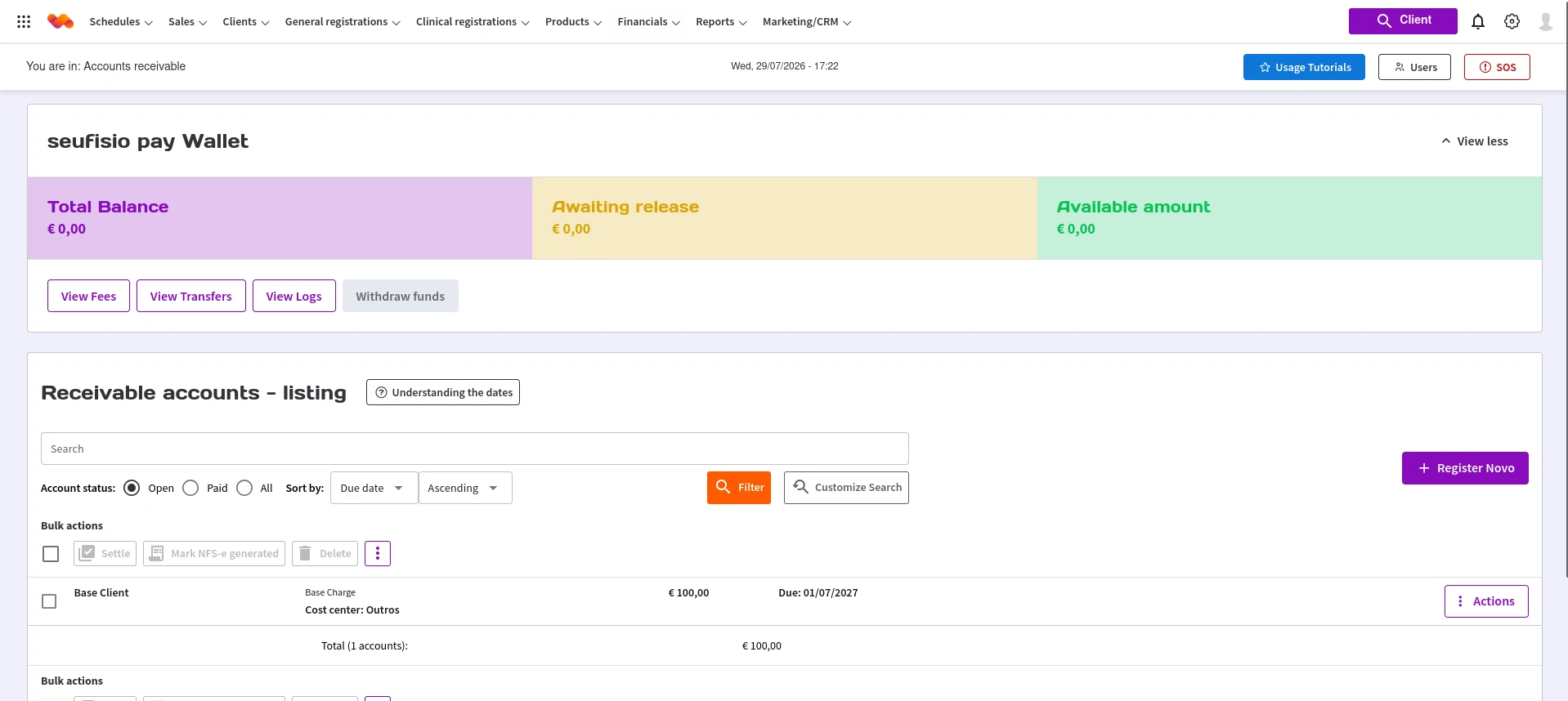
- Financials → Accounts receivable, in the account list; or
- Customer record → financial tab, in that customer's account list.
Steps:
- Find the receivable you want.
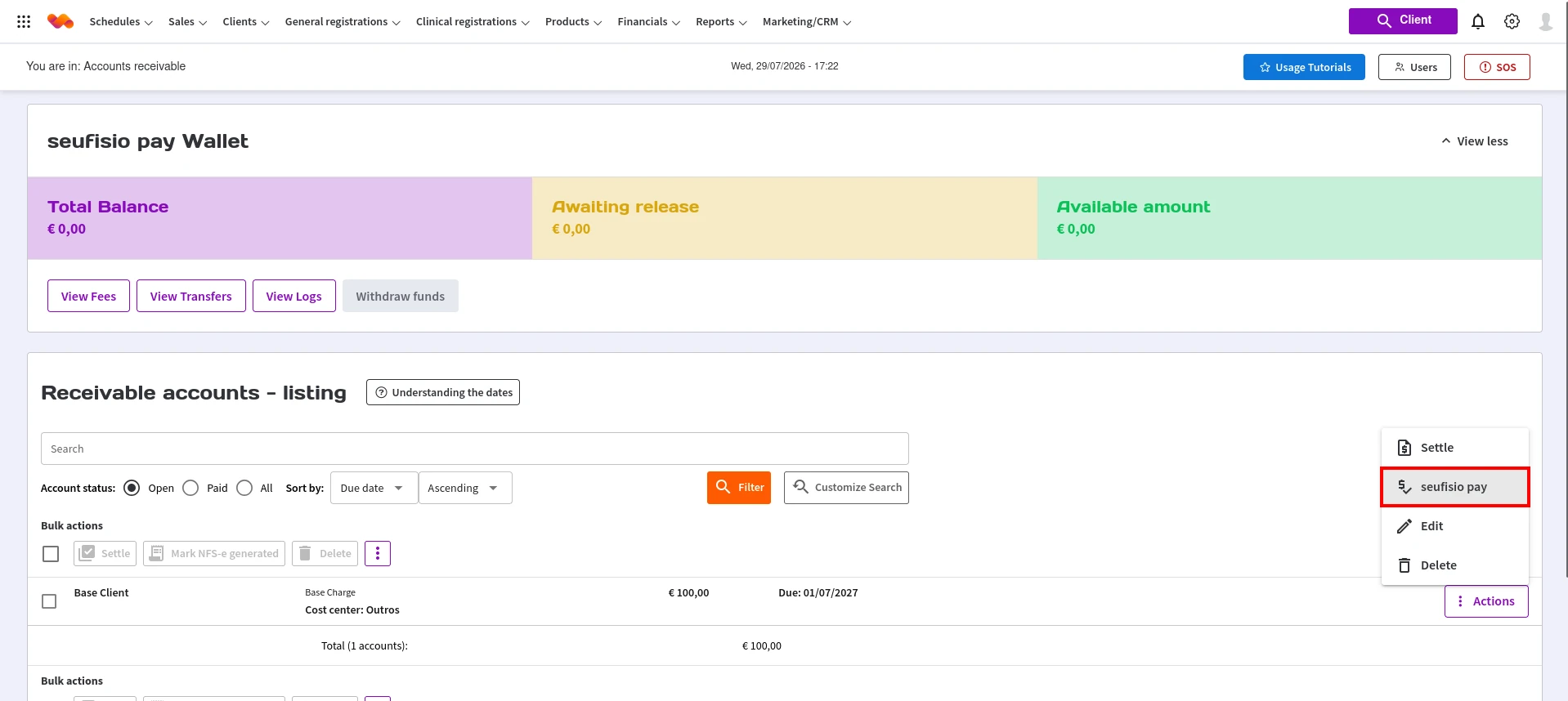
- Click Actions (on the right of the account).
- Click seufisio pay.
3.2 Choose the charge type
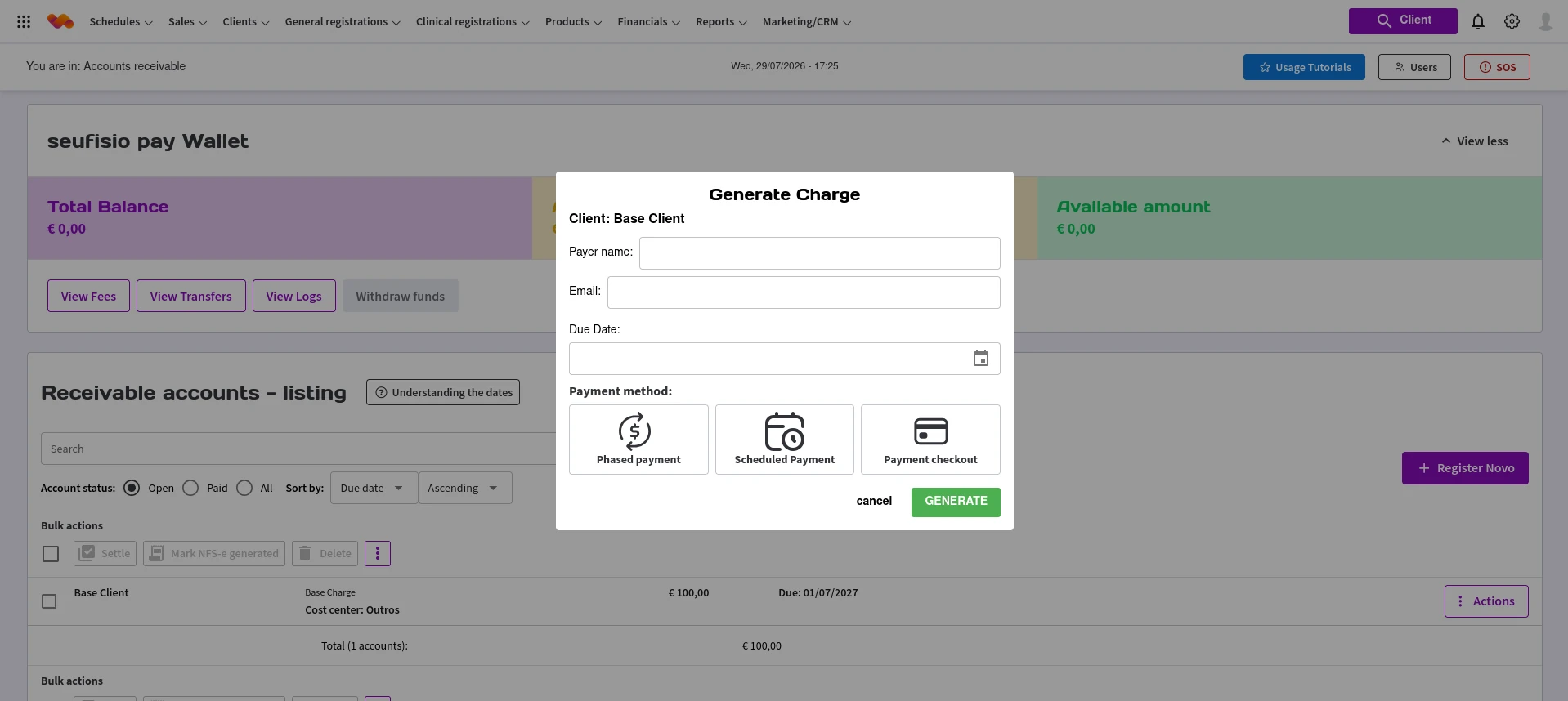
In the Generate Charge window, check the customer and fill in:
- Payer name (required);
- E-mail (required — the receipt goes there and, if you want, the link too);
- Due Date.
Then choose one of the three types:
- Type — How it works — When to use
- Payment checkout — Creates a link; the customer chooses the payment method and pays whenever they want, up to the due date — One-off charge, single session, product, first charge for a new customer
- Phased payment — Splits the amount into monthly instalments and charges the customer's method automatically — Monthly fees, packages paid in instalments
- Scheduled Payment — A single automatic charge on a future date — Customer who authorised the charge for later (e.g. the 5th of next month)
3.2.1 Payment checkout (link)
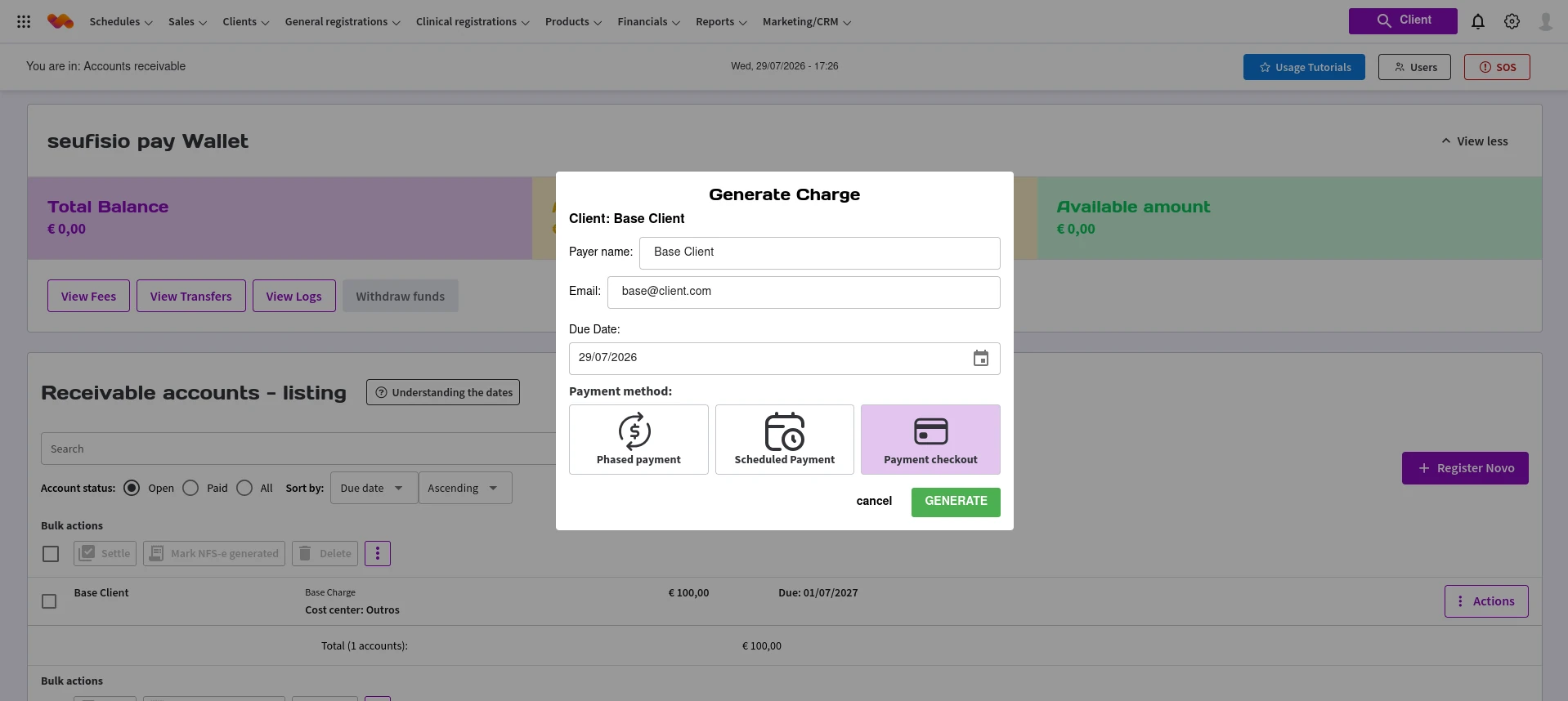
- Select Payment checkout.
- Confirm name, e-mail and due date.
- Click Generate.
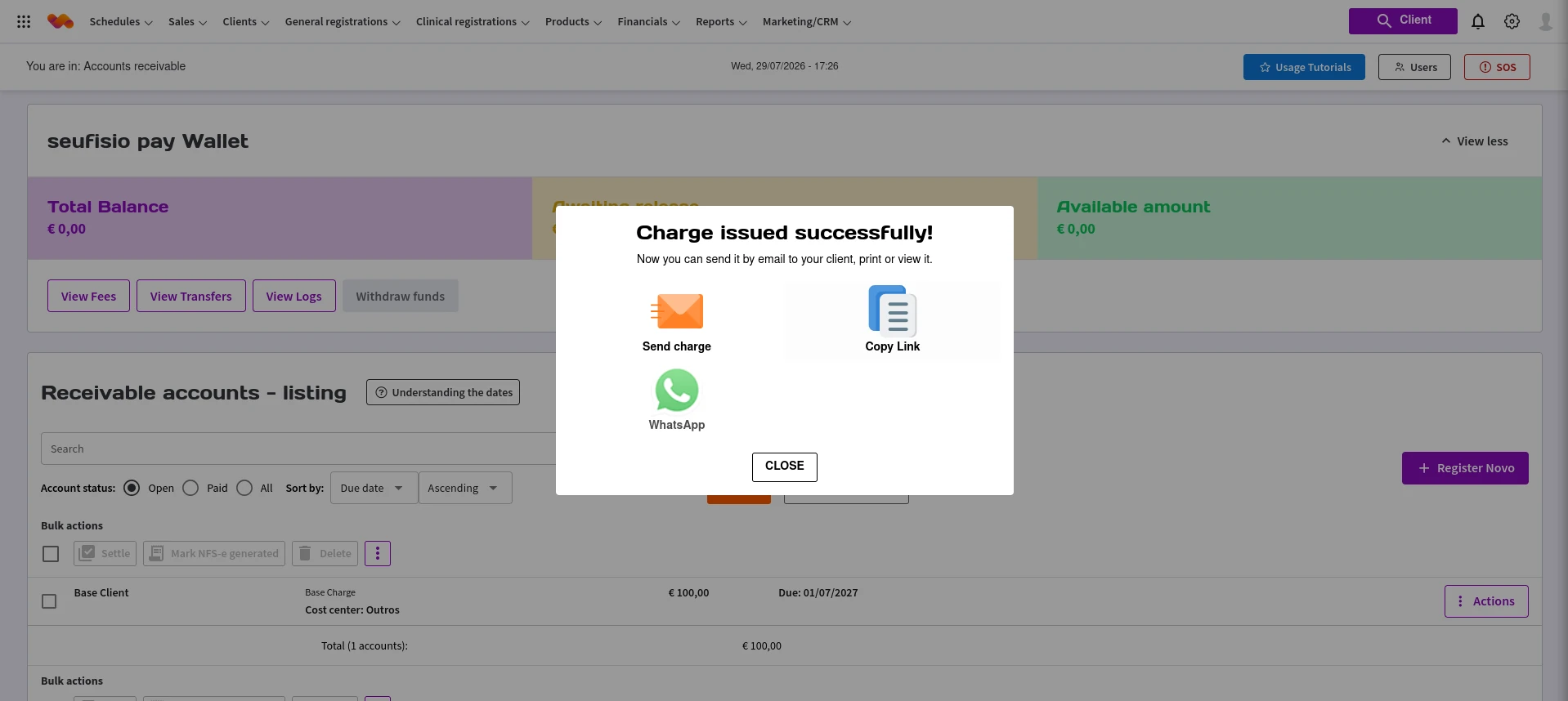
- On the success screen, choose how to deliver the charge:
- Send charge — sends the link by e-mail; - Copy Link — copies the address to paste wherever you want; - Whatsapp — opens WhatsApp with the message ready.
3.2.2 Phased payment (automatic instalments)
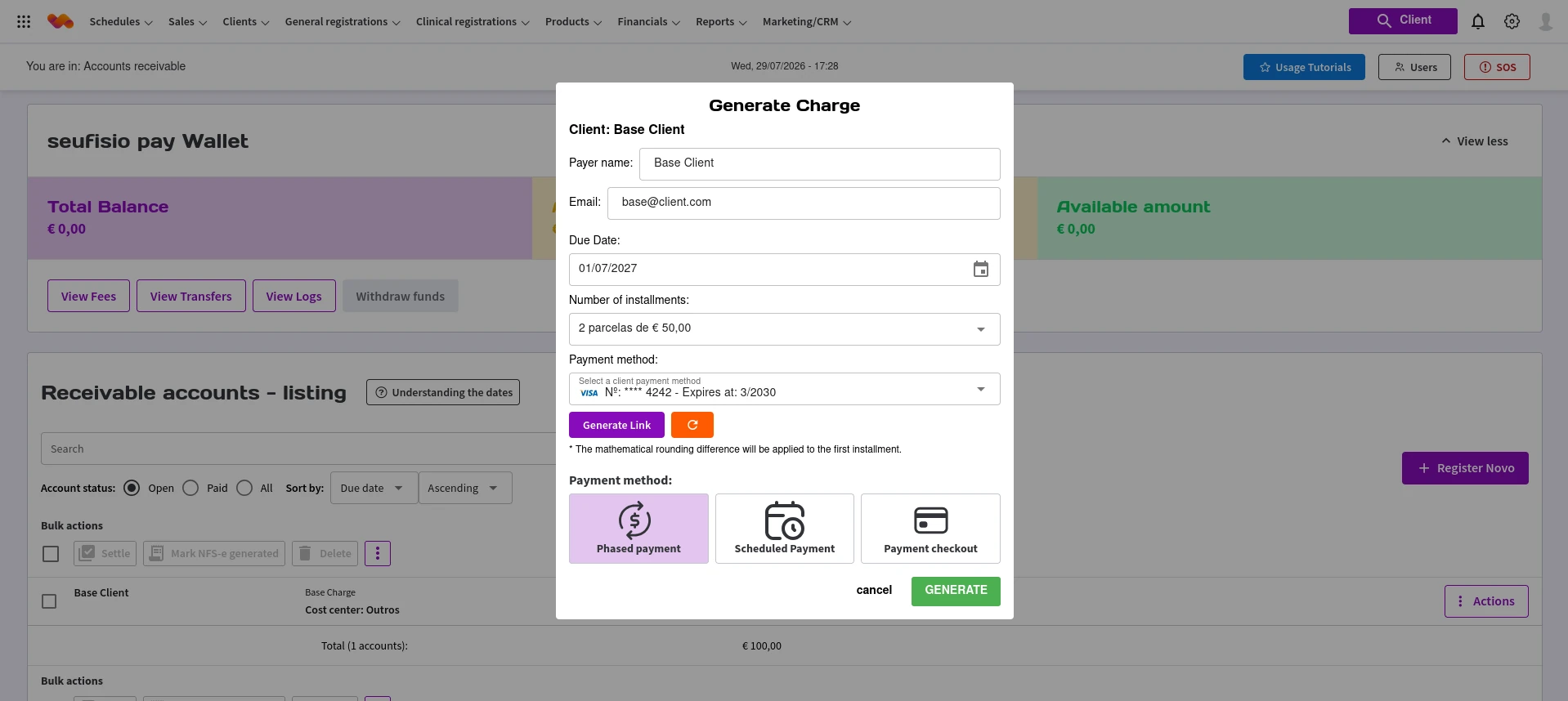
- Select Phased payment.
- Choose the Number of installments (the system already shows the amount of each instalment).
- Choose the customer's Payment method. If none exists yet, click Generate Link to request the registration (see Part 2 ) and then the reload button.
- Confirm the Due Date — it defines the charge day for every instalment.
- Click Generate.
Phased payment rules:
- Minimum of 2 instalments (maximum 12);
- Minimum total amount of 7.80 in the account currency;
- The due day cannot be later than the 28th (this guarantees a charge in every month);
- The rounding difference in cents goes into the first instalment;
- The system creates one receivable per instalment, numbered in the title (e.g. "(1/12) Monthly fee").
3.2.3 Scheduled Payment
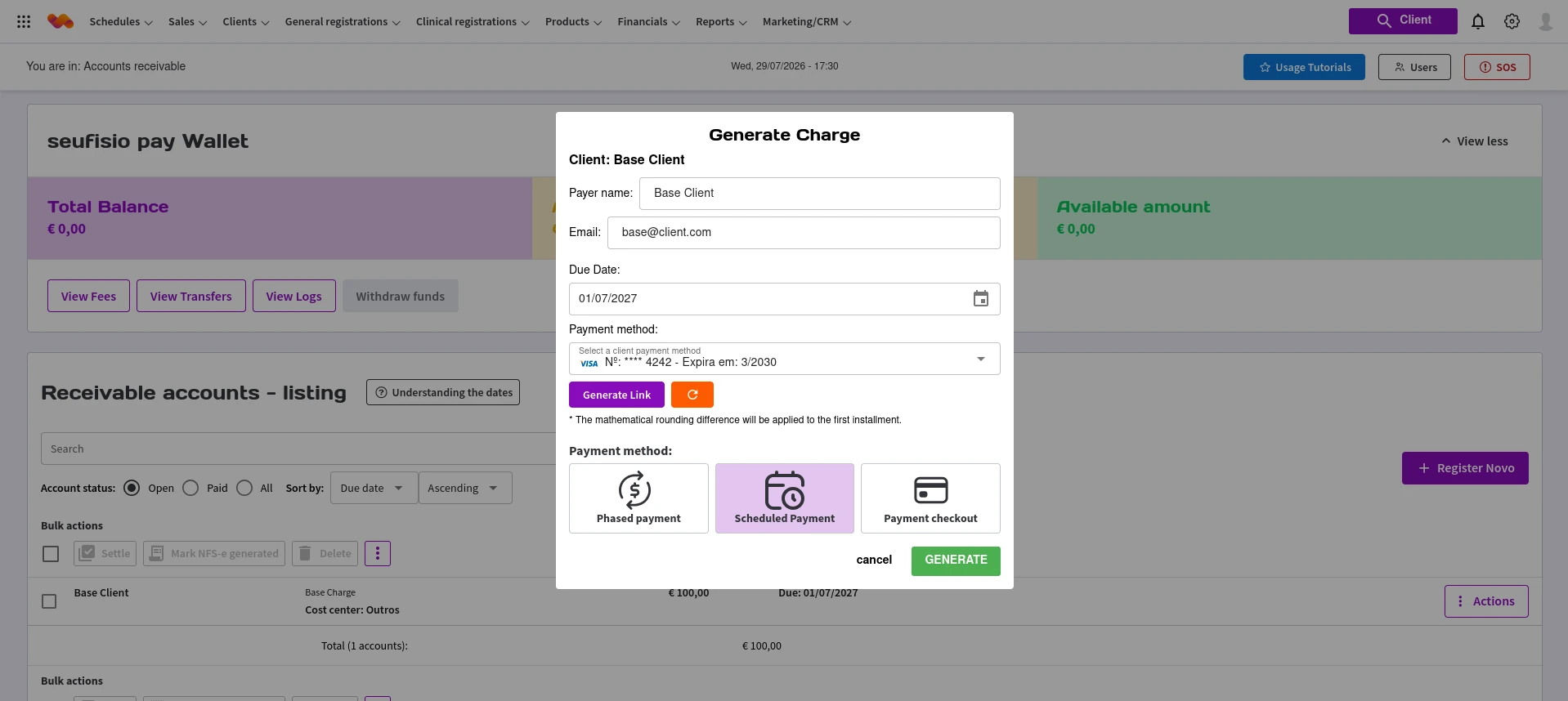
- Select Scheduled Payment.
- Choose the customer's Payment method.
- Enter the Due Date (the charge day, also up to the 28th).
- Click Generate.
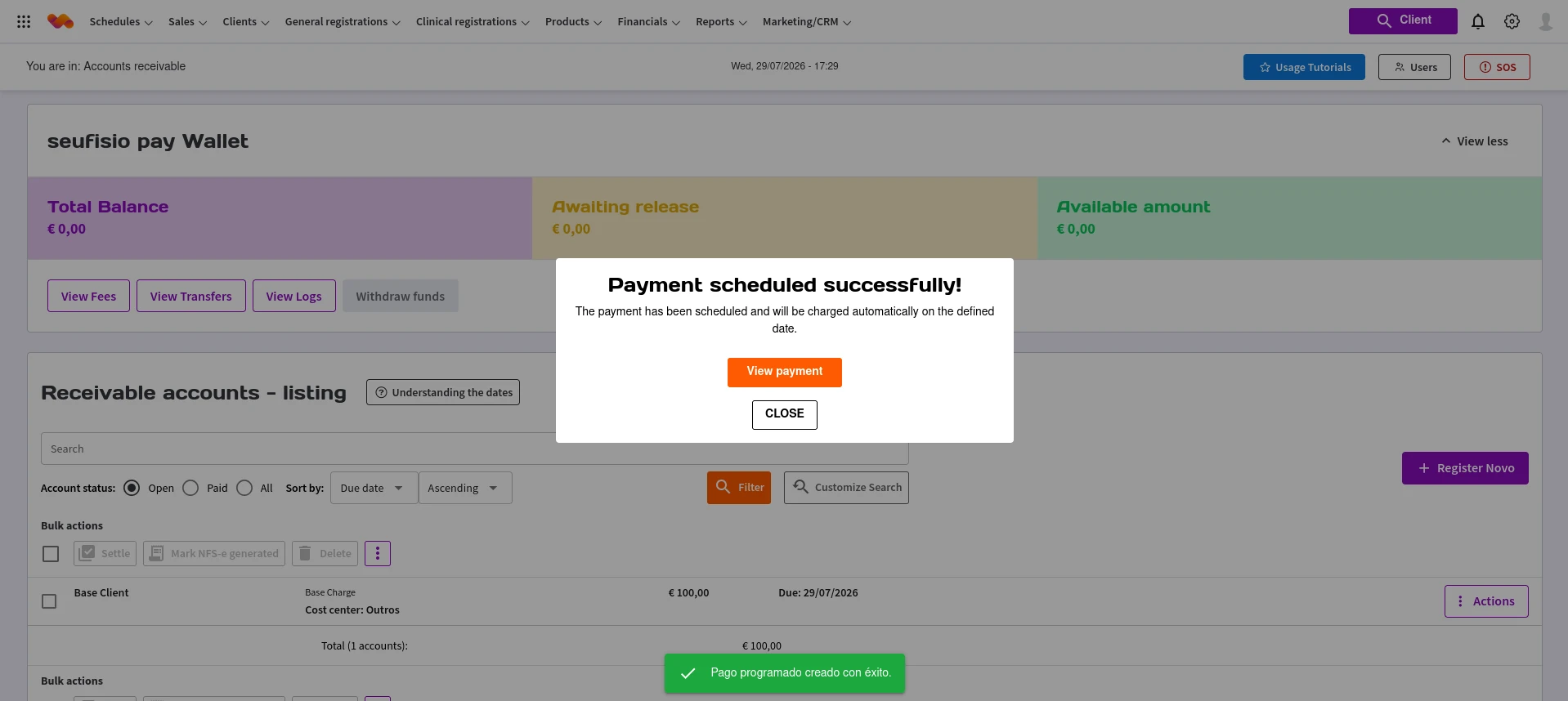
- In both cases (phased and scheduled) the system confirms the creation and offers the View phased payment / View payment button, which opens the instalment tracking.
3.3 Limits and validations when creating
- Situation — System message
- seufisio pay account is not ACTIVE — "Cannot generate, as your account has pending issues!"
- Payer name empty — "Payer name is required!"
- E-mail empty — "E-mail is required!"
- Due date earlier than today — "The due date cannot be earlier than today!"
- Phased/scheduled with a day later than the 28th — "For phased or scheduled payments, the due day cannot be later than the 28th!"
- Charge type not chosen — "Payment method is required!"
- Amount above 999,999.99 — "Cannot generate a charge when the account amount is greater than €999,999.99."
- Phased payment with only 1 instalment — "Cannot generate a subscription with only 1 installment!"
- Phased payment below 7.80 — "Cannot generate a phased payment when the account amount is less than €7.90."
- Phased/scheduled without a selected method — "Payment method is required!"
- Amount below 0.50 (checkout and scheduled) — Minimum amount notice
- Receivable already has an active charge — "This receivable already has an active charge in Stripe."
Was this article helpful?