


Finance
Part 5 — Approved, declined, cancelled and expired payments
The charge becomes paid and the receivable is settled automatically (payment and receipt dates filled in, with seufisio pay as the payment provider); · The…
- Updated: 29/07/2026
- 2 min read
5.1 Approved payment
What happens:
- The charge becomes paid and the receivable is settled automatically (payment and receipt dates filled in, with seufisio pay as the payment provider);
- The amount goes into the clinic's balance (first as *Awaiting release*, then as *Available amount*);
- The Stripe Receipt becomes available in the account's Actions menu;
- For a phased payment, the month's instalment shows as paid and the plan stays active until the last instalment — when all are paid it becomes Completed.
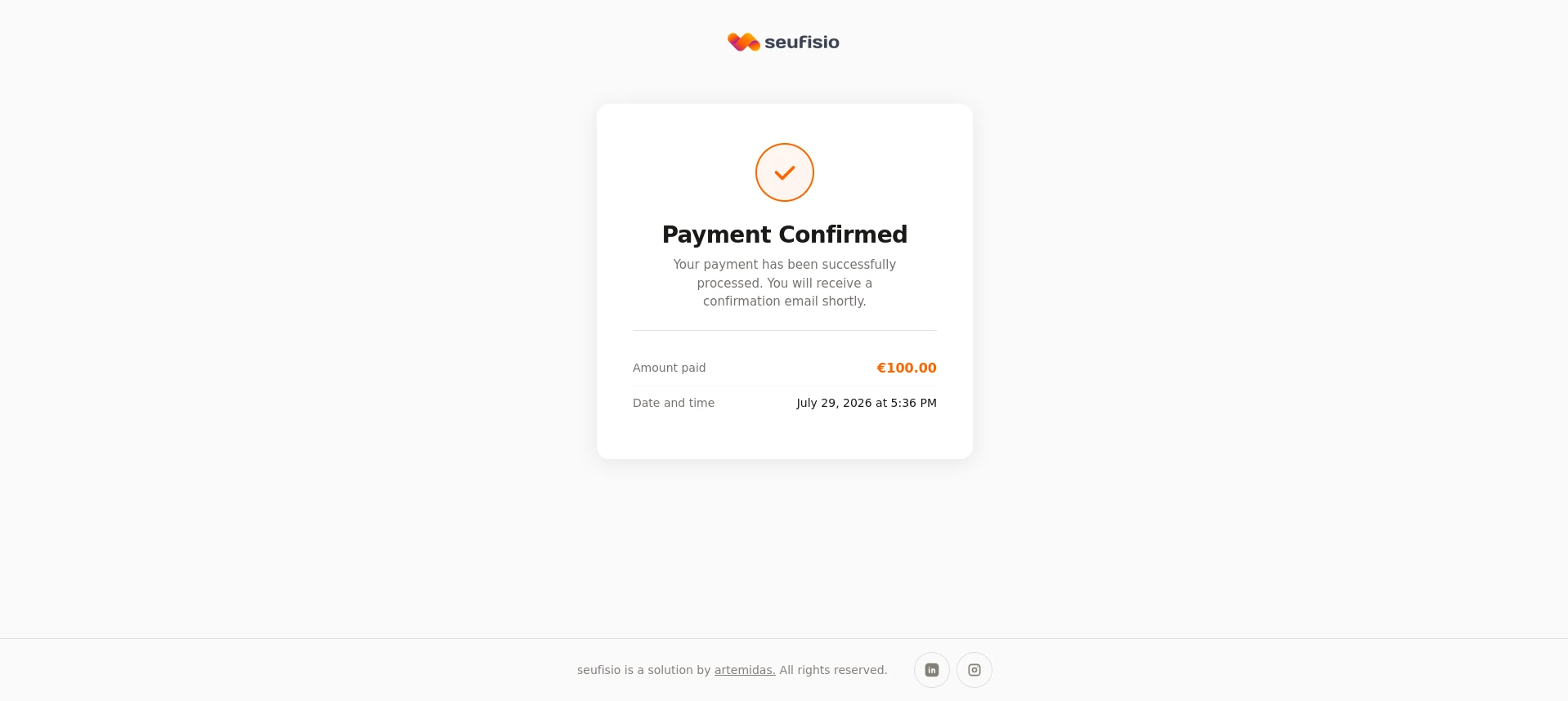
The customer sees the Payment Confirmed screen, with amount, date and time.
5.2 Declined payment
- The charge is marked as failed; the receivable stays open;
- The Payment Declined tag appears in the account list;
- To try again, use Regenerate Charge (new link) or, for phased/scheduled payments, Recover with another payment method;
- Failures are recorded under View Logs, in the wallet.
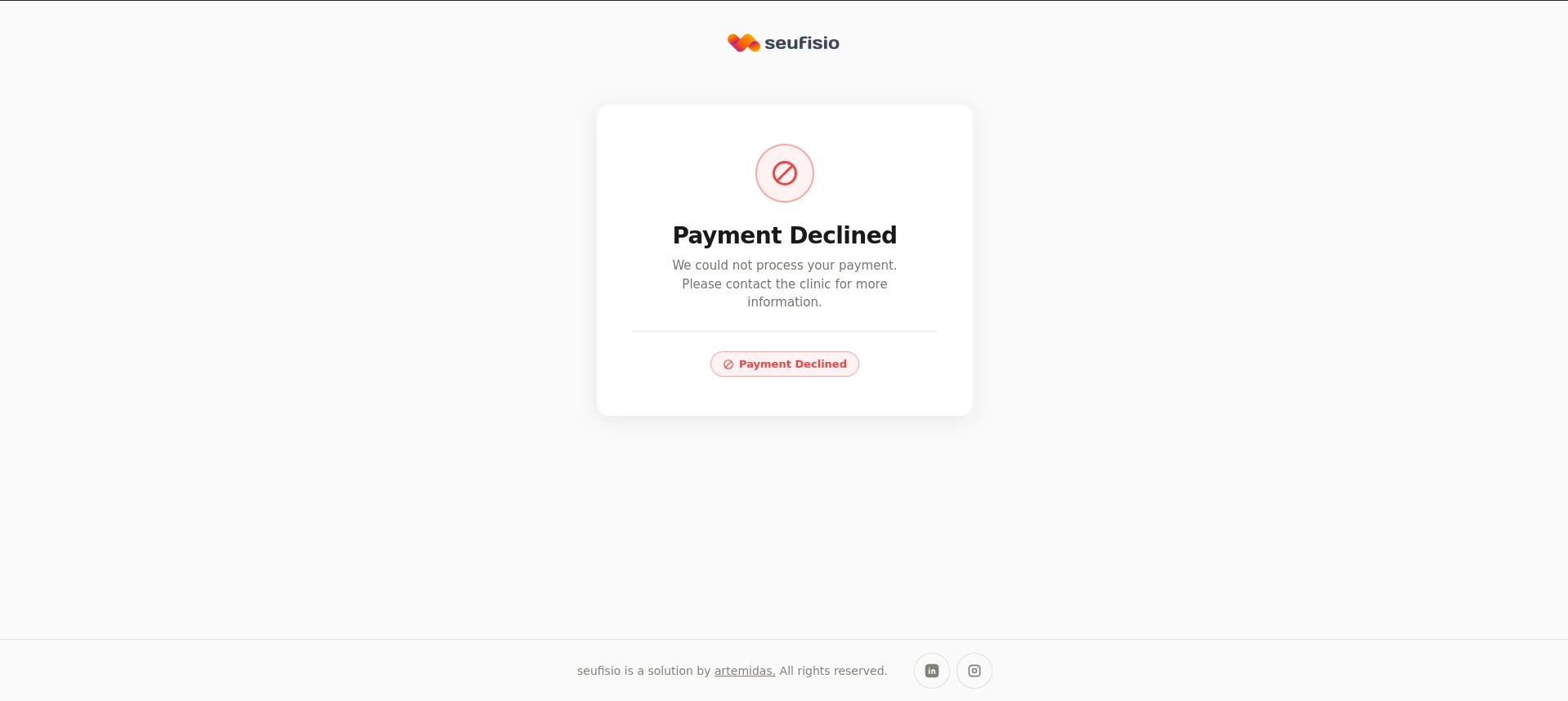
The customer sees the Payment Declined screen.
5.3 Payment being processed
Some methods (Multibanco and SEPA debit, for example) do not confirm immediately. During that time:
- The charge appears as Processing;
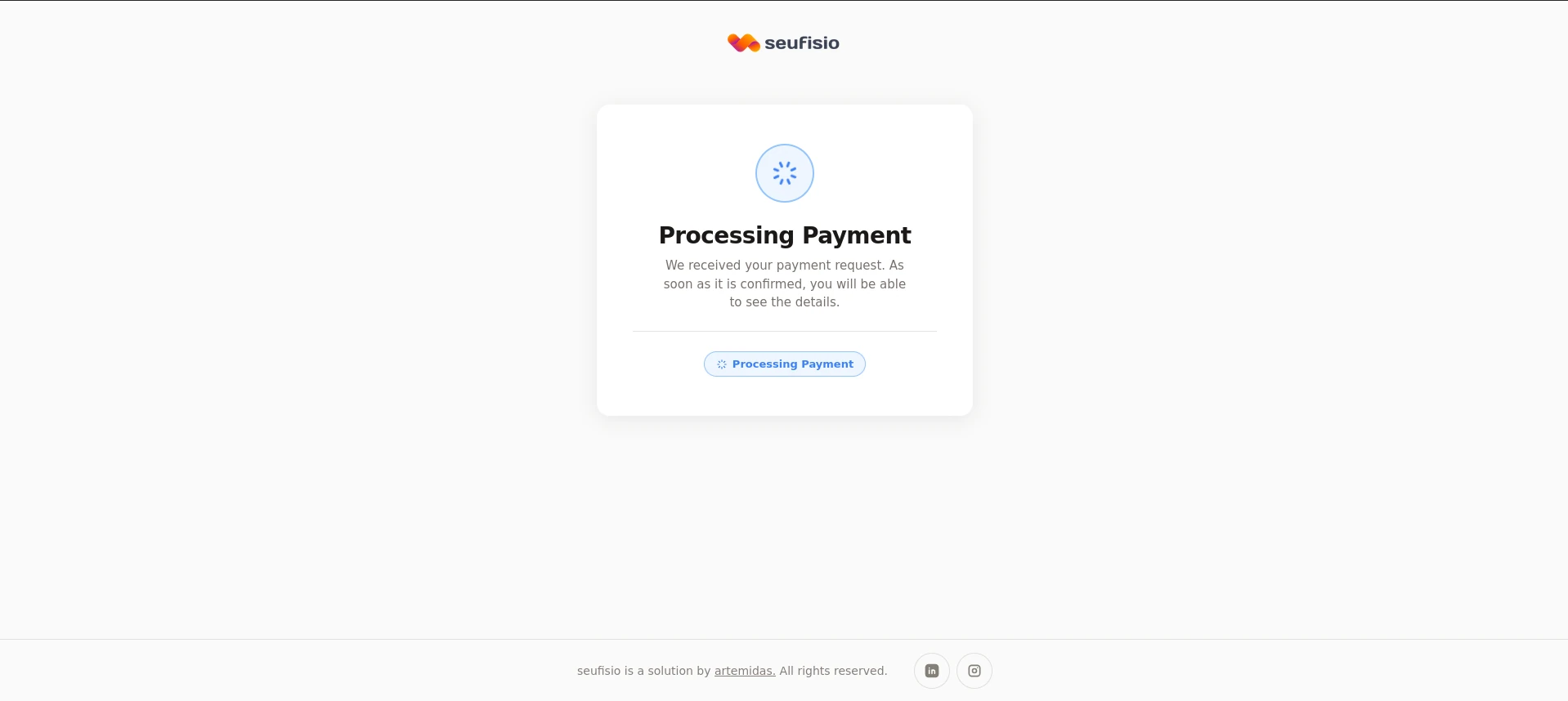
- A customer who reopens the link sees the Processing Payment screen;
- It cannot be cancelled or regenerated until it is resolved;
- When the payment is confirmed the receivable is settled automatically; if it fails, it moves to declined.
5.4 Cancelled charge
When the clinic cancels the charge:
- The charge becomes cancelled and the link stops working;
- The receivable goes back to having no charge linked, and can be charged another way (a new charge, a manual payment and so on);
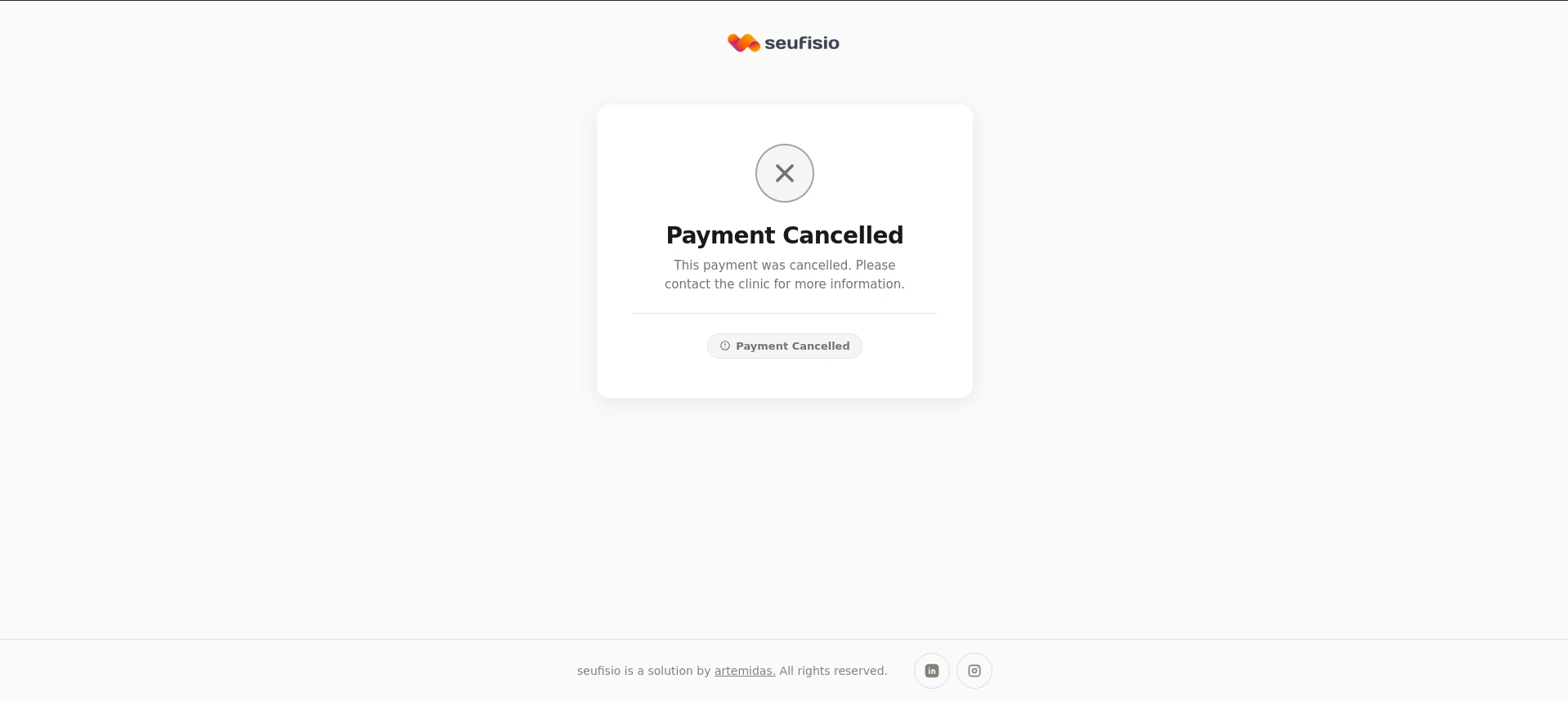
- A customer who opens the old link sees Payment Cancelled, with guidance to contact the clinic.
Cancelling a phased or scheduled payment also cancels every instalment not yet paid.
5.5 Expired charge (past due)
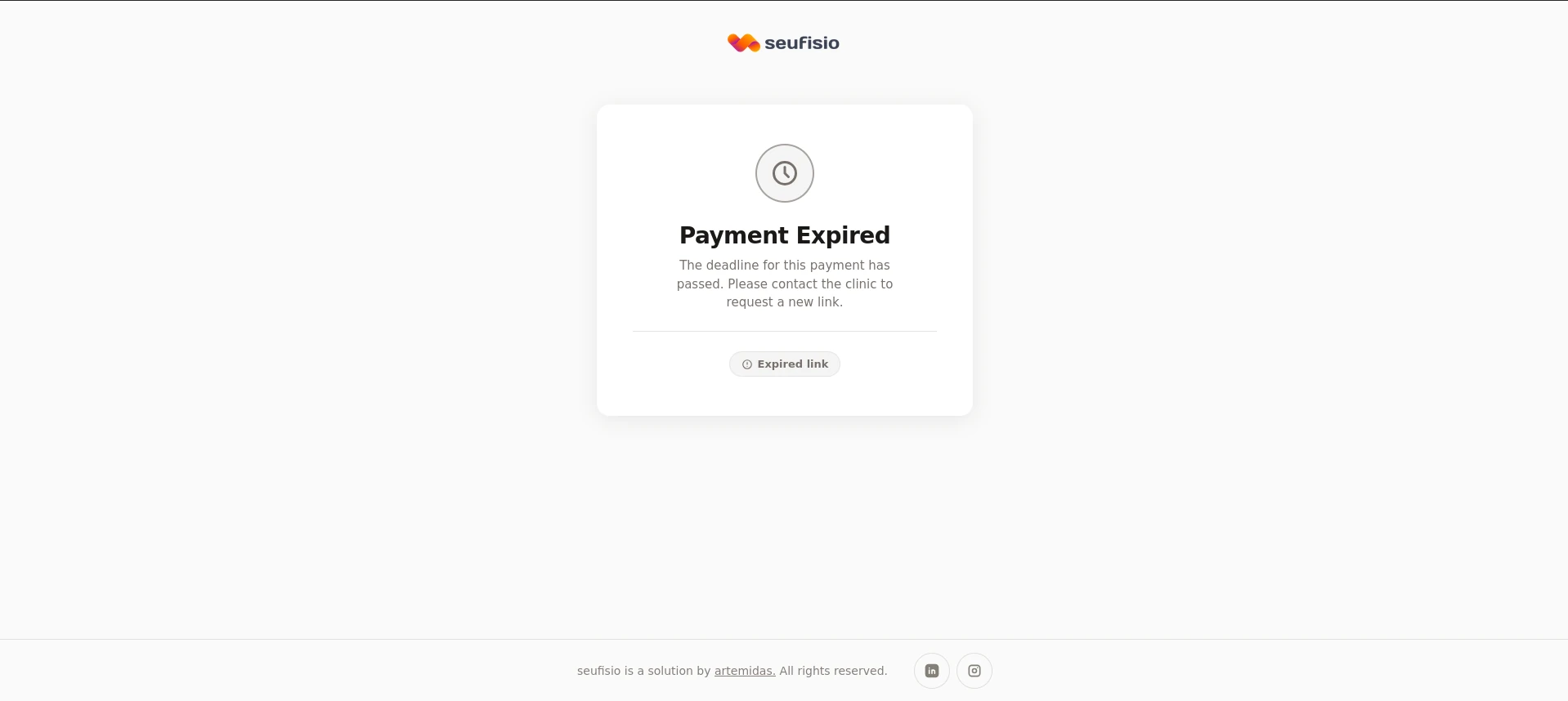
- Once the due date has passed, the link no longer accepts payment and the customer sees Payment Expired, with guidance to ask the clinic for a new link;
- In the account list the receivable shows the Overdue tag;
- To reactivate it, use Regenerate Charge and enter the new date: the old charge is cancelled and a new one is created, with a new link.
5.6 Behaviour summary
- Result — Charge — Receivable — Tag in the list — Available actions
- Approved — Paid — Settled — (no pending tag) — Stripe Receipt; view phased/scheduled payment
- Declined — Failed — Open — Payment Declined / Payment Failed — Regenerate; recover with another method
- Being processed — Processing — Open — Processing — Wait; copy link
- Cancelled — Cancelled — Open, with no charge — (back to the normal state) — Create a new charge
- Expired — Pending and past due — Open — Overdue — Regenerate with a new date; cancel
Was this article helpful?