


Finance
Part 6 — Tracking and reviewing charges
Each account shows the state of its charge:
- Updated: 29/07/2026
- 2 min read
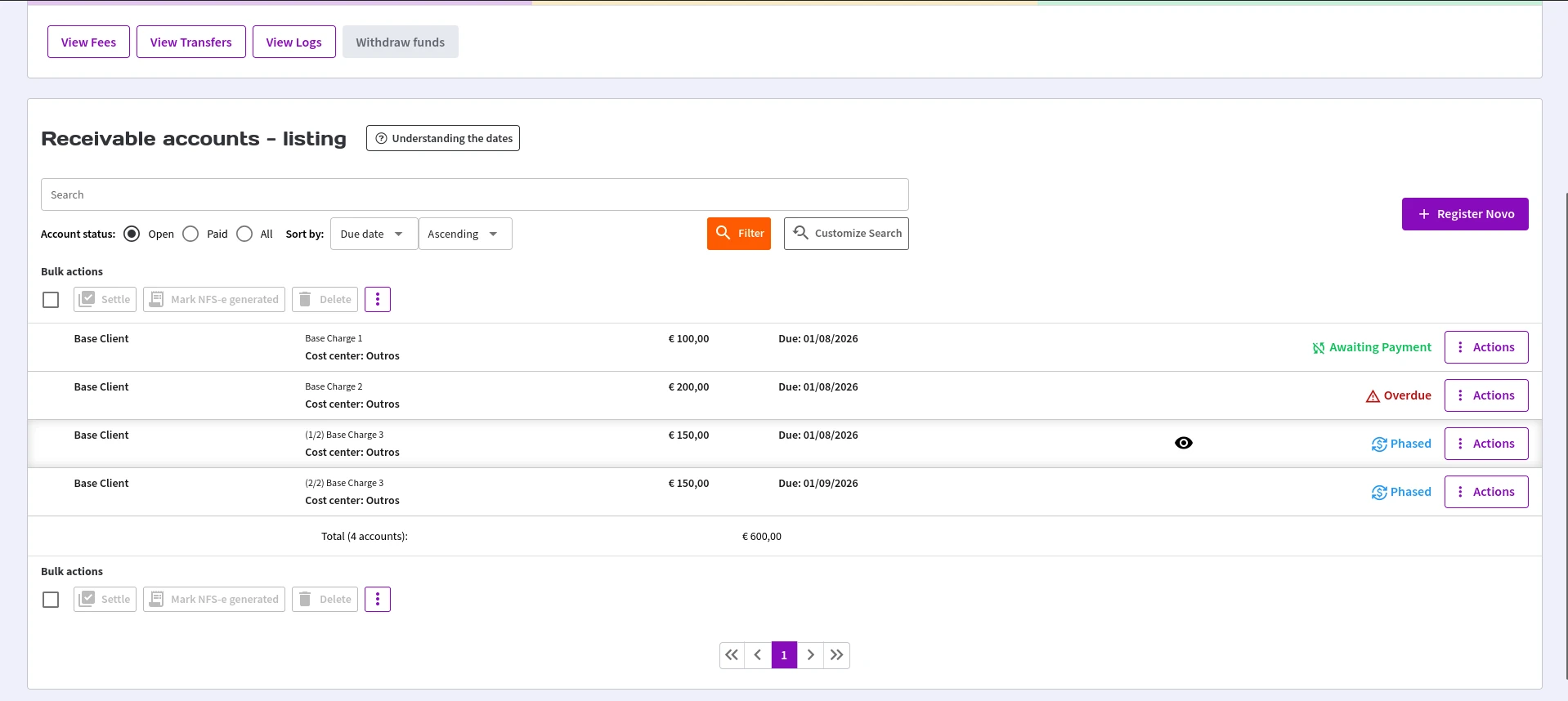
6.1 Tags in the Accounts receivable list
Each account shows the state of its charge:
- Tag — Meaning
- Awaiting payment — Link created, waiting for the customer to pay
- Processing — Payment under review/settlement
- Payment Declined — The payment attempt failed
- Overdue — The due date passed without payment
- Phased — Instalment of a phased payment, to be charged automatically on the due date
- Scheduled — Scheduled payment, to be charged automatically on the date
- Payment Failed — Automatic charge failed — requires action from the clinic
6.2 Payment receipt
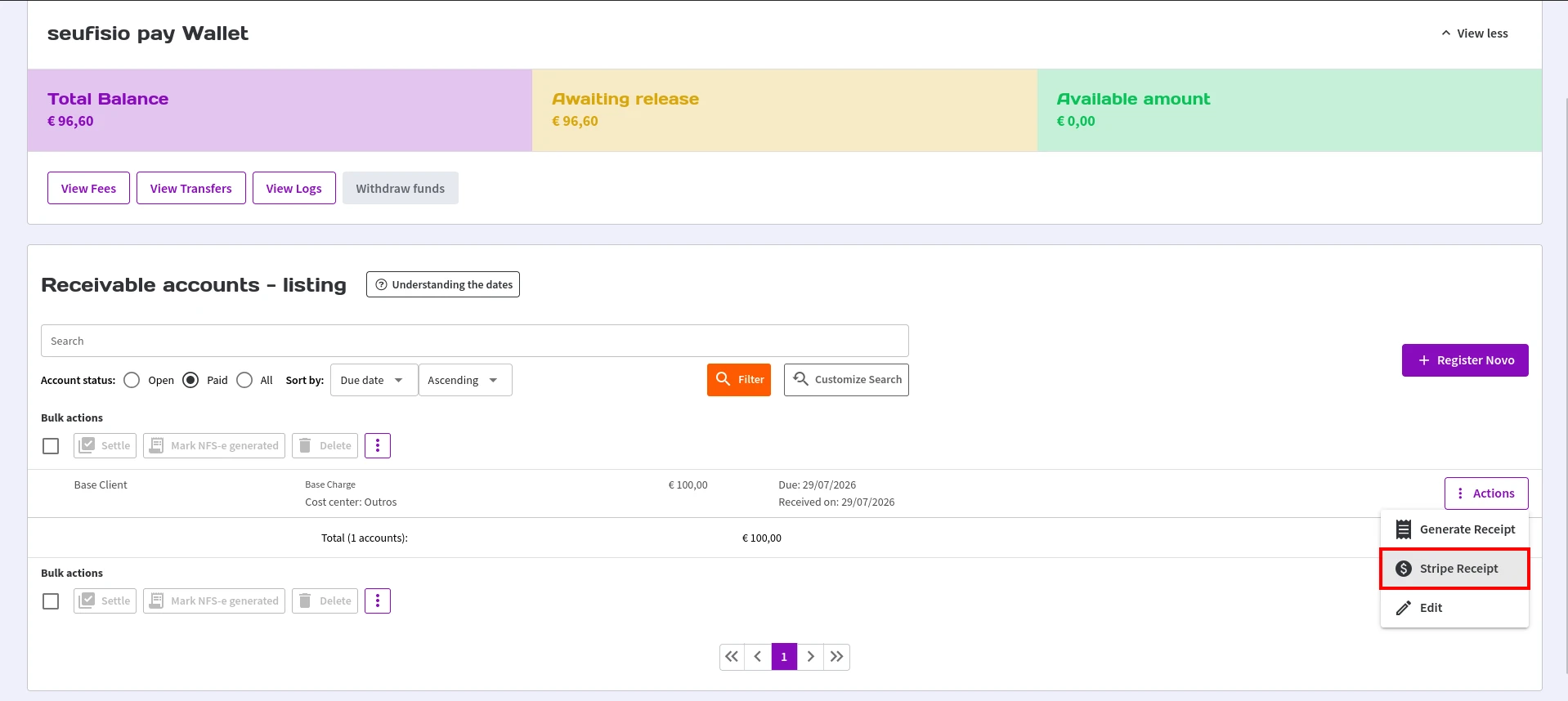
- On an account paid by link (checkout), click Actions.
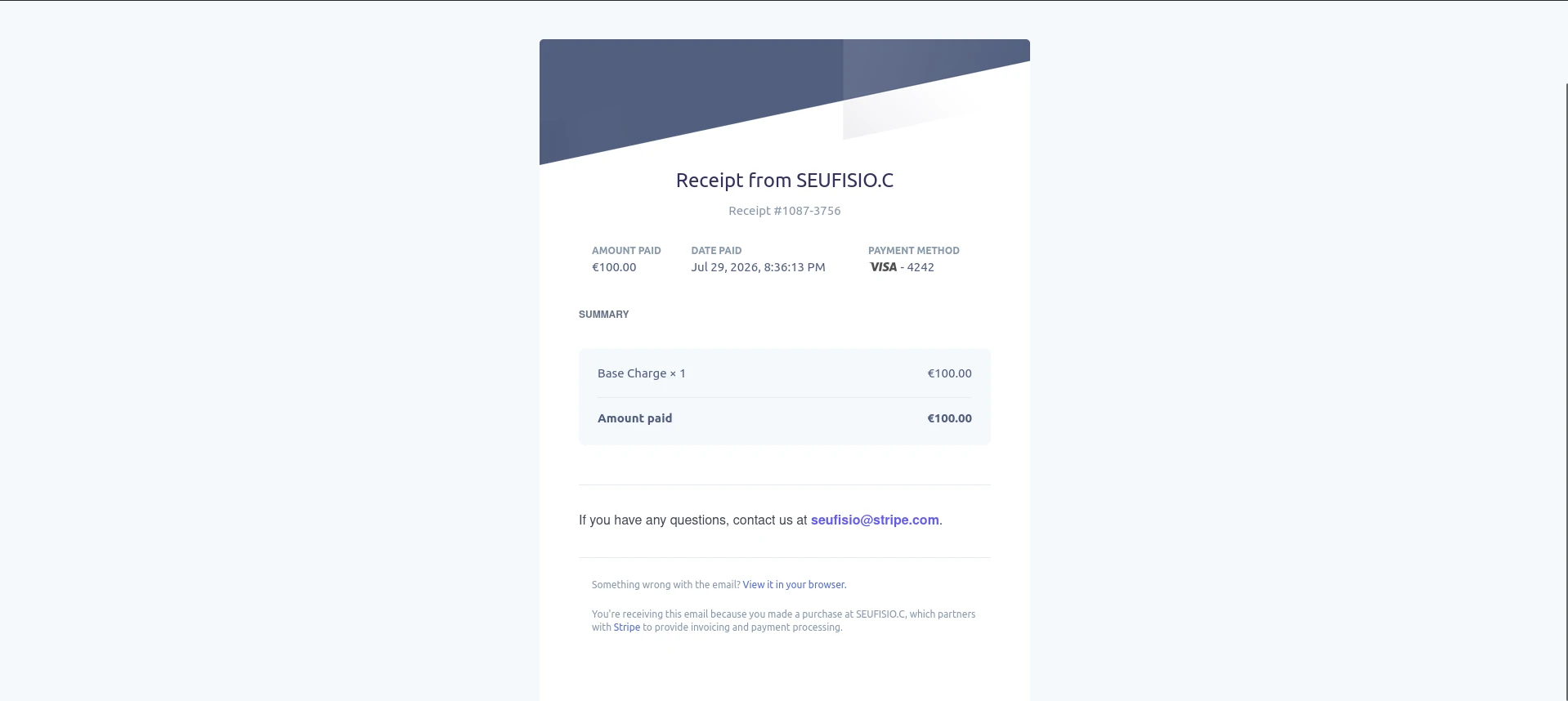
- Click Stripe Receipt — the official proof of payment opens in a new tab.
6.3 Follow a phased or scheduled payment
- On the matching receivable, click Actions.
- Click View phased payment (or View payment ).
The window shows:
- The overall status: Active, Past due, Completed or Cancelled;
- The date of the last instalment (end of the plan) or the payment day;
- The payment method used (brand and last digits);
- The list of instalments, with title, due date, payment date, amount and status of each one.
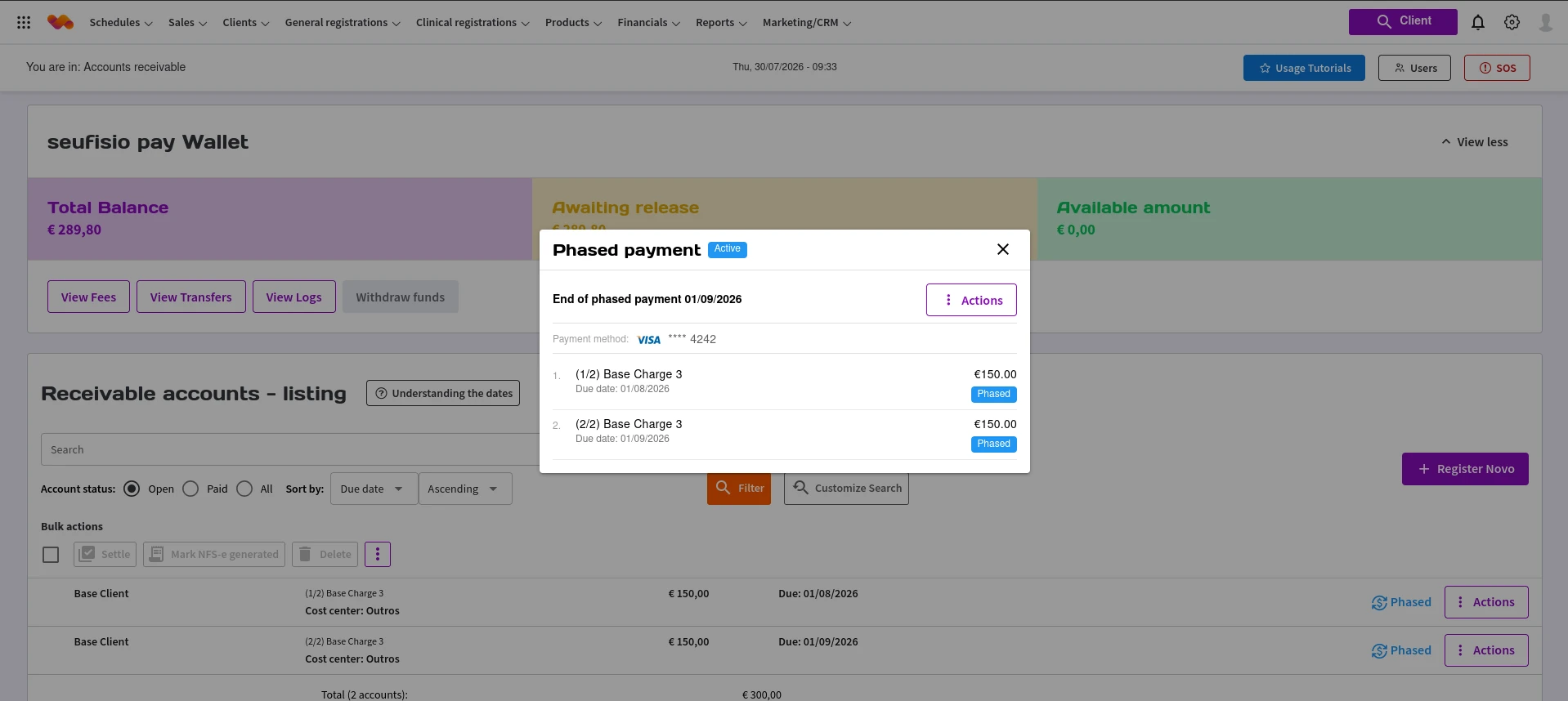
The Actions button in that window offers (depending on the status):
- Action — When it appears — What it does
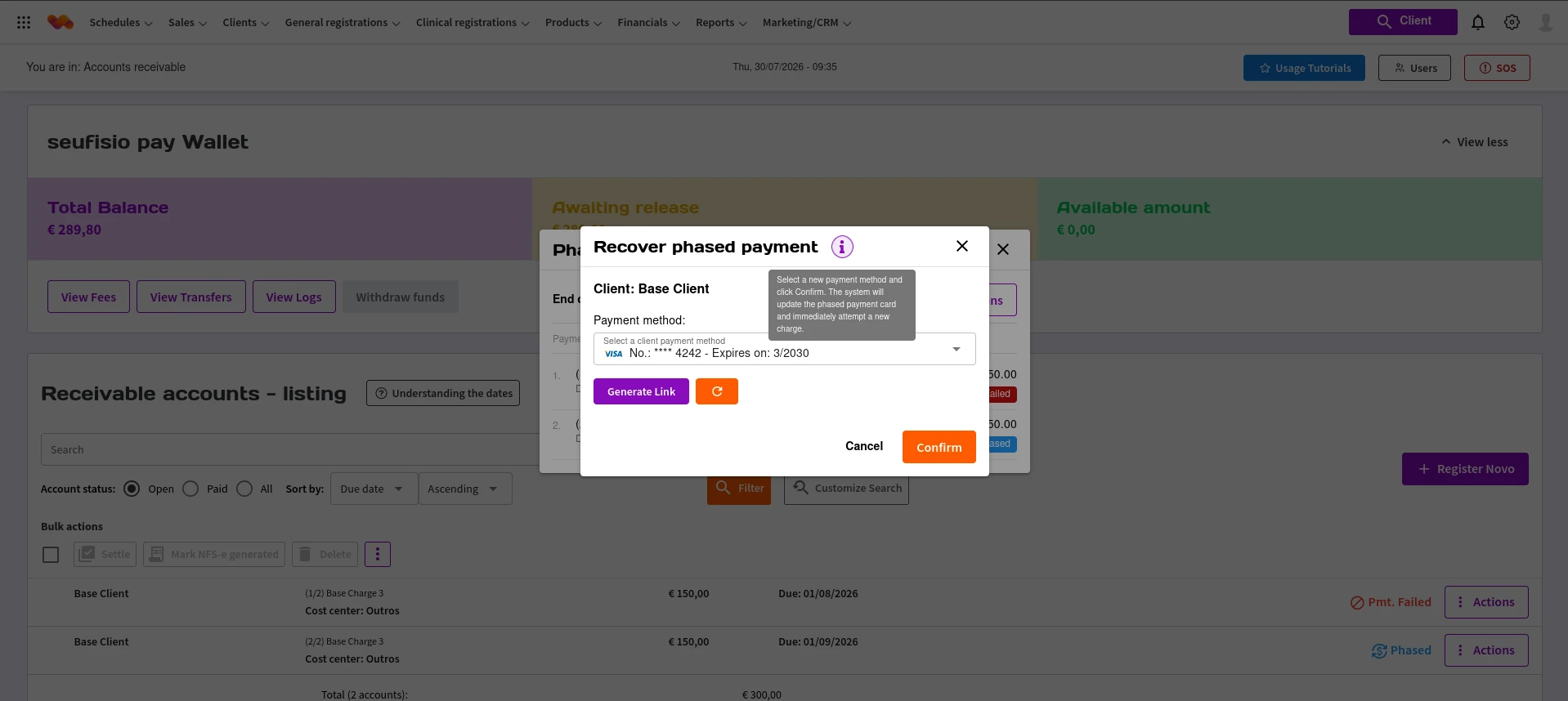
- Recover phased payment / payment — There is a failed instalment (Past due status) — Changes the payment method and charges immediately
- Change payment method — Active status — Moves the next charges to another method (must differ from the current one)
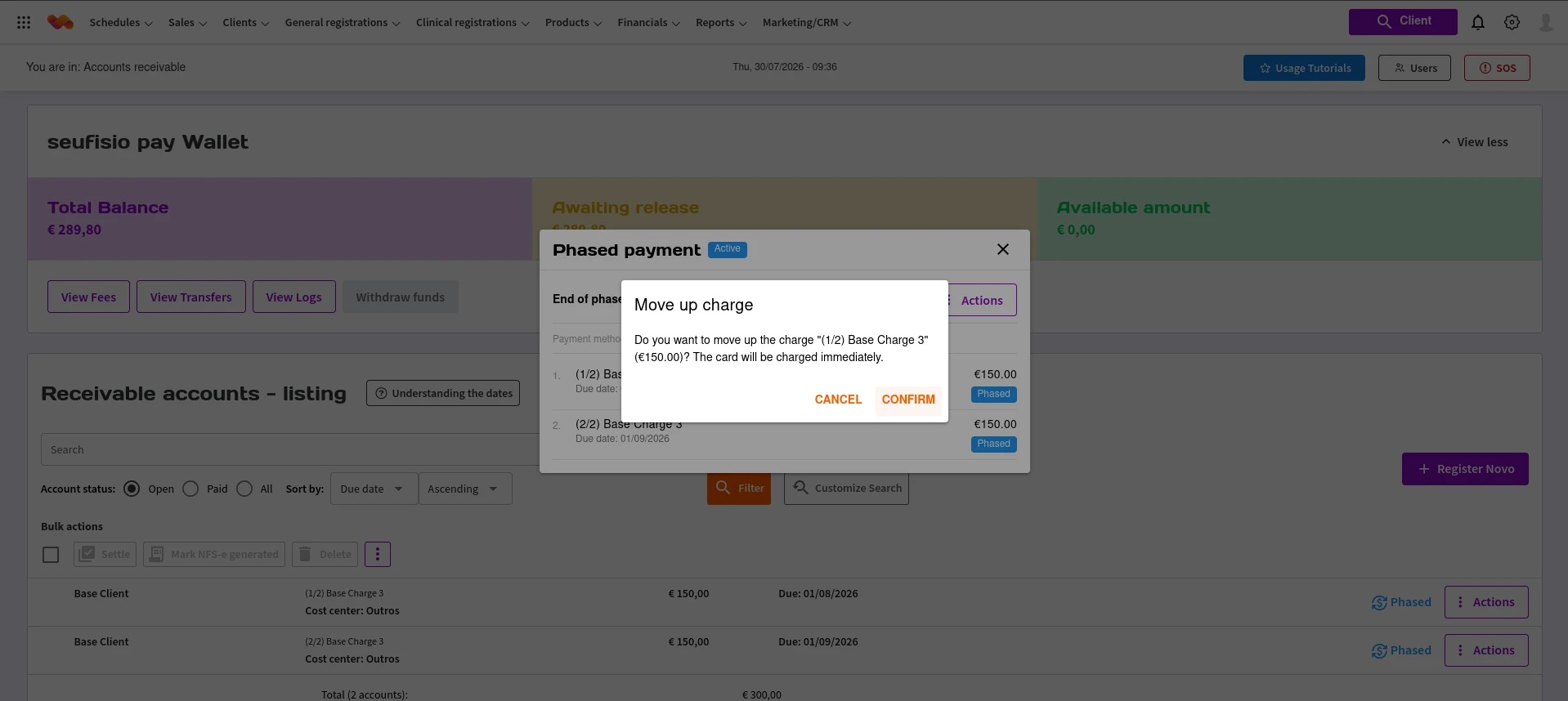
- Move up next charge — Active phased payment with a pending instalment — Charges the next instalment right now
- Cancel phased payment / payment — Active or Past due — Cancels the plan and every unpaid instalment
6.4 Resend, regenerate and cancel a link charge
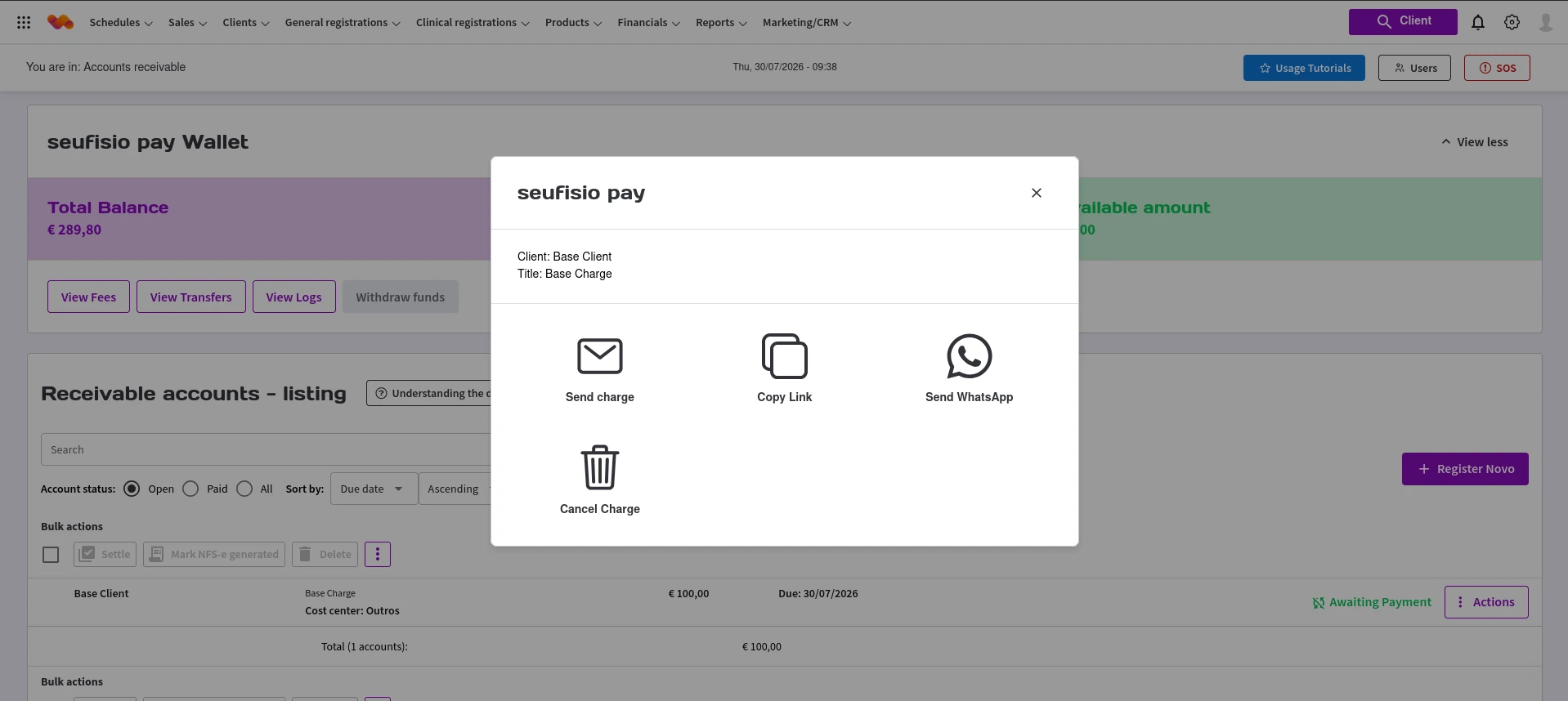
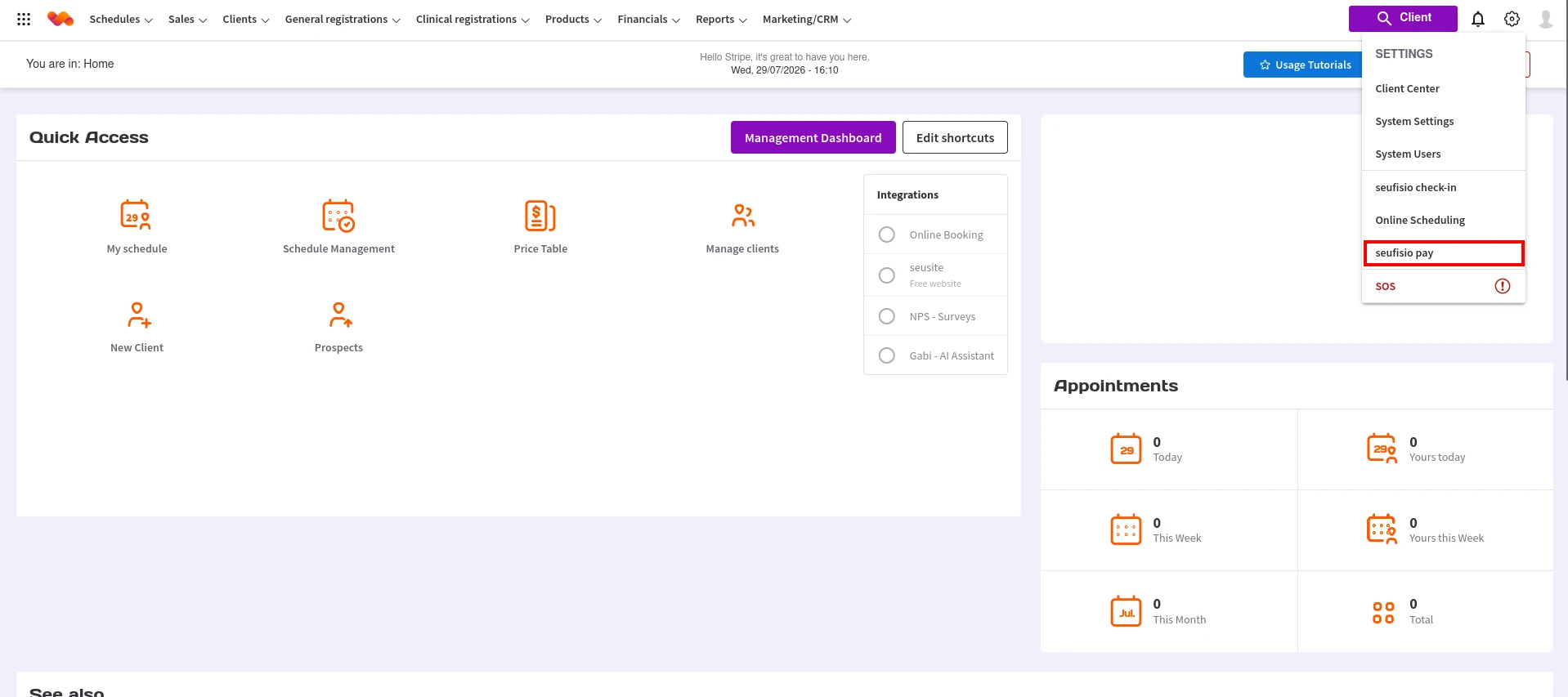
- On the account with a link charge, click Actions → seufisio pay actions.
- Choose:
- Button — When it is available — What it does
- Send charge — Charge open and within the due date — Resends the link by e-mail
- Copy Link — Always — Copies the charge address
- Send Whatsapp — Charge open and customer with a phone number — Opens WhatsApp with the message ready
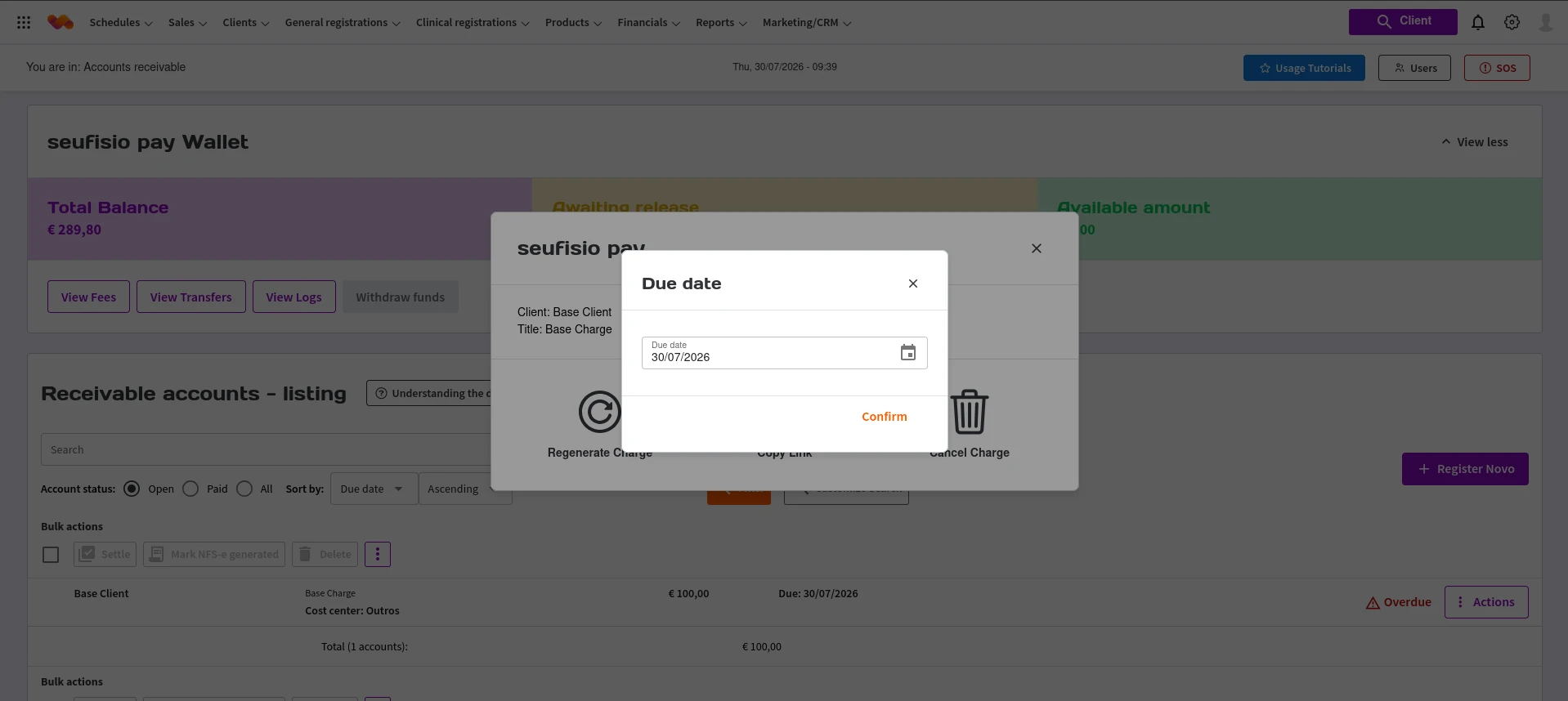
- Regenerate Charge — Charge overdue, declined or expired — Cancels the old one and creates a new one, with a new date and link
- Cancel Charge — Charge open — Cancels the charge and releases the receivable
- When you choose Regenerate Charge, enter the new Due date and confirm.
Was this article helpful?