


Finance
Part 10 — Ending the integration (deleting the account)
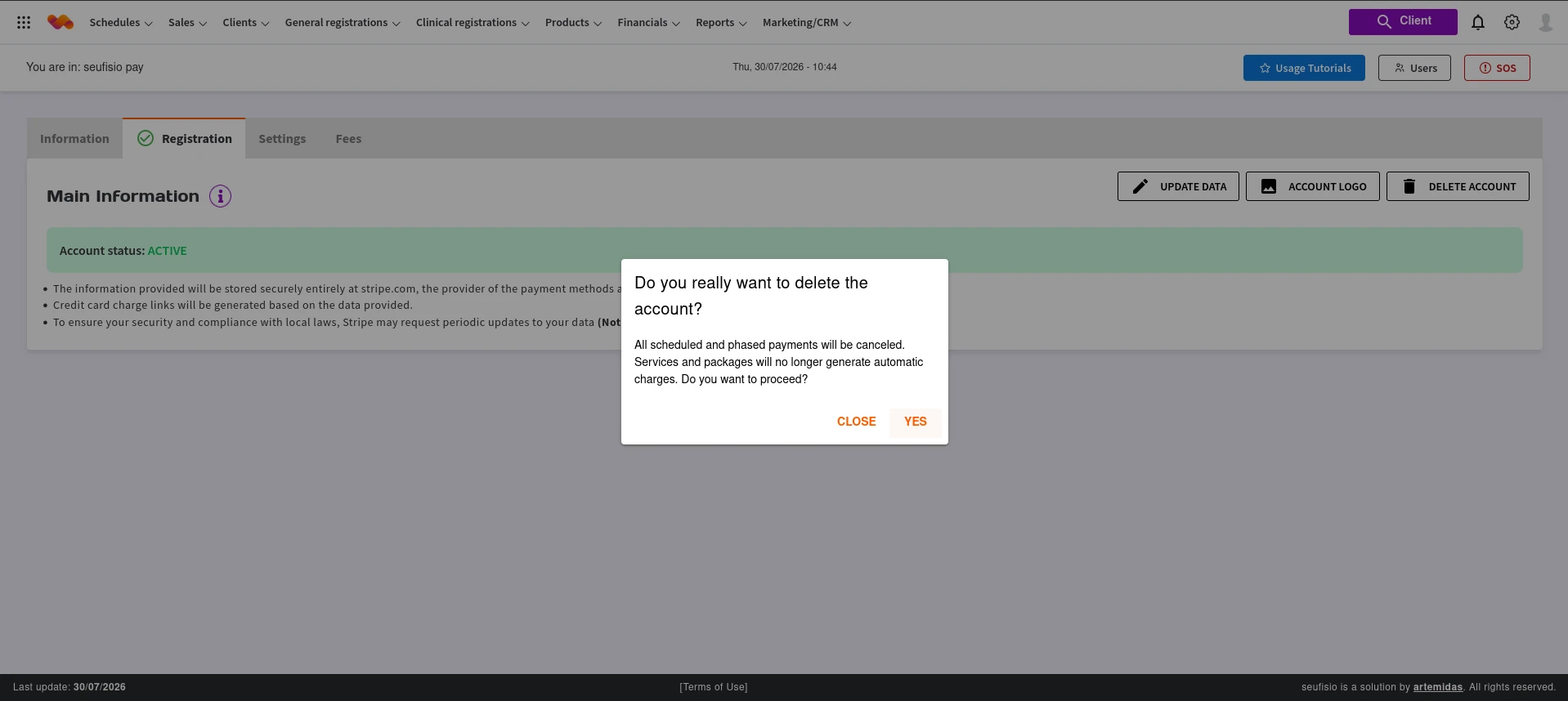
Go to seufisio pay → Registration tab · Click Delete Account · Read the notice and confirm
- Updated: 29/07/2026
- 2 min read
- Go to seufisio pay → Registration tab.
- Click Delete Account.
- Read the notice and confirm.
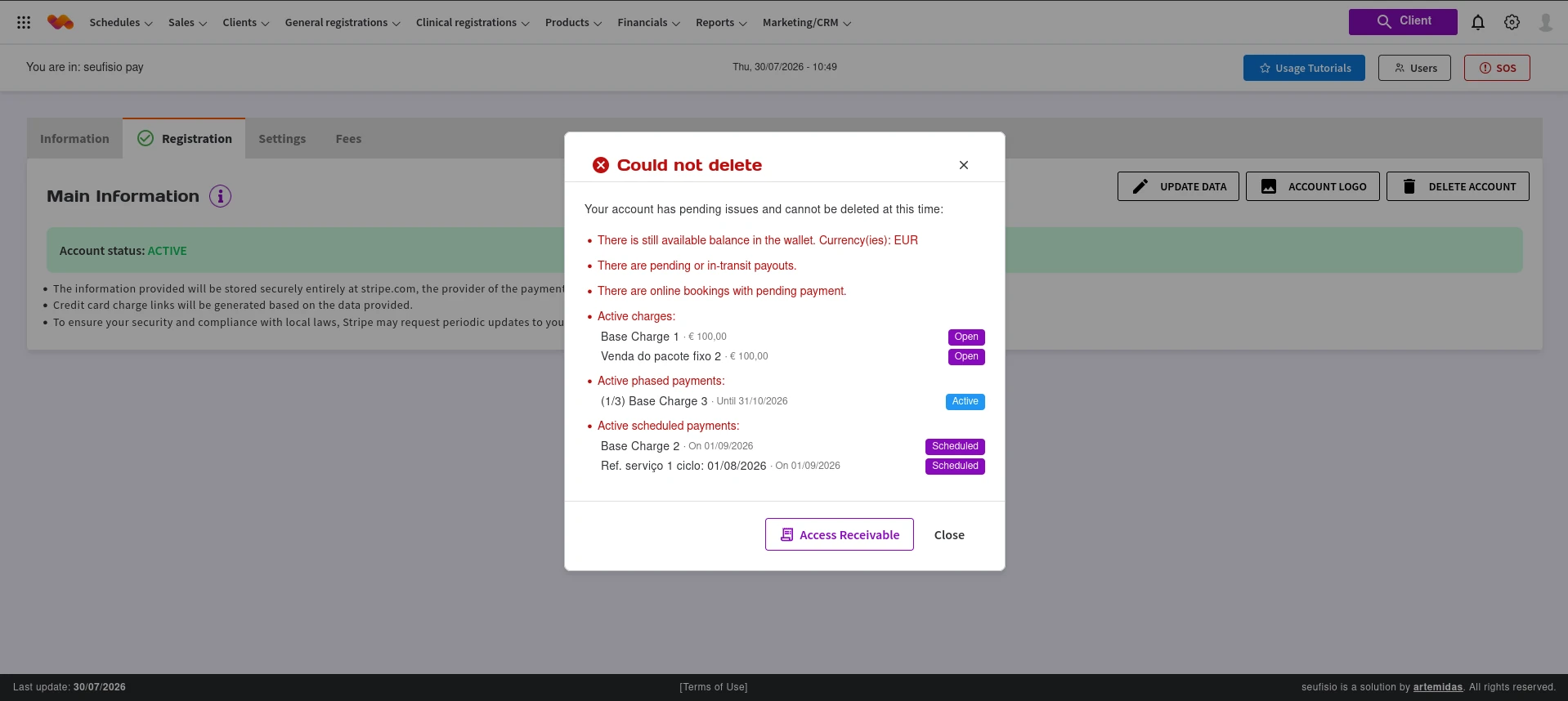
Deletion is blocked when there is:
- a link charge open and still valid;
- an active or past-due phased or scheduled payment;
- a booking with an open payment;
- a transfer pending or in transit;
- a balance in the wallet (available or awaiting release).
The system shows all the blockers at once, with a shortcut to the receivable involved.
When the deletion goes through:
- Charges, phased/scheduled payments, payment methods and transfers are removed from the system;
- Services and packages stop creating automatic charges;
- Plans stop being offered in online scheduling and charging in the scheduler is turned off;
- The account is closed at Stripe.
Was this article helpful?